
Upgrade your video calls with the best webcam for Zoom. Our 2026 guide covers top picks (from budget to premium) so you always look sharp on camera!
The Best Webcam for Zoom Meetings (2026): Our Expert Picks and Buying Guide
From grainy laptop cams to crystal-clear video calls – choosing the right webcam can transform your Zoom experience. After weeks of testing the latest models (and even switching to a smartphone camera a few times), I’ve seen first-hand how a sharp, well-lit image makes you look and feel more confident in meetings. Whether you’re pitching to clients, catching up with family, or teaching a class, a top-quality webcam ensures your face comes through with vibrant color and detail. In this guide, we’ll walk through the best webcams for Zoom in 2026 – from premium models to budget-friendly options – so you never have to worry about looking fuzzy or too dark on camera again.

Upgrading from your laptop’s built-in camera is one of the quickest ways to boost your video quality. Built-in cams often struggle in dim light and have fixed focus, making you look washed-out or blurry. In contrast, modern webcams handle auto-light correction and focus much better. Many even include privacy shutters and upgraded mics, so you both look and sound your best. By the end of this article, you’ll know which webcam fits your setup and budget – and exactly why it’s worth the upgrade for Zoom calls.
Why a Dedicated Webcam Matters for Zoom
Zoom, Microsoft Teams, Google Meet and other video conferencing apps cap at 1080p (Full HD) video. That means even if you have a 4K webcam, most meetings will only send 720p or 1080p. However, higher-resolution cameras often have better sensors and color processing, and they let you crop or digitally zoom without losing detail. In plain terms: a premium 4K webcam still produces cleaner 1080p video than a generic 1080p cam.
Most built-in laptop webcams are 720p or lower, with tiny sensors that need lots of light. A dedicated webcam (like the ones below) typically offers auto exposure, noise reduction, and bigger apertures (e.g. f/1.7–f/2.0) so you stay clear in dim rooms. Improved mics are also common, cutting background noise so you’re heard clearly without a separate headset. In our tests, even budget webcams bested internal laptop cams in color and sharpness – often by a large margin. In fact, one tech reviewer found that a good light (like a $70 panel) can improve your image more than a $50 webcam, but why not do both?
Pro Tip: Before splurging, consider your smartphone. Modern phones (iPhone, Pixel) have excellent cameras and can act as webcams via Continuity Camera or wired USB modes. This trick can work for Mac or PC and often beats cheap webcams.
How to Choose a Zoom-Friendly Webcam
Choosing “the best” webcam depends on how you use Zoom. Here are the key specs to watch:
-
Resolution & Framerate: 1080p at 30fps is the sweet spot for video calls. Higher (4K/30fps or 1080p/60fps) can give flexibility (better auto-cropping or smooth motion) but Zoom won’t stream above 1080p anyway. If you need to occasionally record or crop your background, 4K makes sense.
-
Low-Light Performance: Look for larger sensors and wide lenses (low f-number). Webcams with 1/2.5–1/1.2″ sensors and f/1.7–f/2.0 apertures gather more light, keeping you bright in dim rooms. The Insta360 Link 2C Pro and Razer Kiyo Pro Ultra are leaders here with big sensors and f/1.9–f/1.7 lenses.
-
Autofocus & AI Framing: Smooth autofocus keeps your face clear as you move. Some cams (Logitech, Insta360, Obsbot) use auto-framing or tracking so you stay centered, similar to Apple’s Center Stage.
-
Microphone Quality: Some webcams have stereo or beam-forming mics for clearer sound. Dual-mic systems (like the Insta360 Link 2C Pro) capture a fuller voice than the single mic in many budget cams. You can always use a separate USB mic (e.g. Blue Yeti), but a good webcam mic means one less gadget.
-
Mount & Build: Clamp style or magnetic mounts should be sturdy and easy to adjust. Many cheaper webcams have flimsy hinges and fixed cables (wired noted that the Dell Pro 5’s built-in USB-A cable was a downside). Models with detachable cables or strong magnetic mounts (Insta360 Link, Dell Pro series) offer more flexibility.
-
Privacy & Extras: Physical lens covers (shutters) are handy for peace of mind. Some cams (Logitech Brio 500) include them. Features like “Show Mode” (Logitech) let you tilt the cam to show objects on your desk, useful for demos.
Below is a quick comparison of standout webcams for Zoom, highlighting the features that matter most for meetings:
| Webcam Model | Resolution/FPS | Field of View | Mic Quality | Price (USD) | Key Perks |
|---|---|---|---|---|---|
| Insta360 Link 2C Pro | 4K @30fps, 1080p@60fps | 79.5° | Dual beamforming | ~$200 | Excellent low-light, natural color, magnetic 3-axis gimbal |
| Logitech Brio 500 | 1080p @30fps, 720p@60fps | 90°/78°/65° (digital zoom) | Stereo array | ~$130 | Auto-light (RightLight 4), Show Mode, adjustable FOV |
| Anker PowerConf C200 | 2K (1440p) @30fps (2K default) | 95° (default) | Dual stereo | ~$66 | High sharpness (2K), f/2.0 aperture, privacy cover |
| Dell Pro 5 (WB526) | 2K (1440p) @30fps, 1080p@60fps | 78° | Mono ( decent ) | ~$120 | Windows Hello support, magnetic mount |
| Razer Kiyo Pro Ultra | 4K @30fps, 1080p@60fps | 82° (f/1.7 lens) | Yes (built-in) | ~$400 | Giant 1/1.2″ sensor (best image quality), HDR, bokeh |
| Elgato Facecam Neo | 1080p @60fps | 77° | Yes (built-in) | ~$60 | Budget 1080p/60, fixed-focus, compact; good for tight budgets |
| Logitech Brio 300 | 1080p @30fps, 720p@60fps | 70° fixed | Yes (mono) | ~$60 | Basic 1080p with USB-C, cheap; better than laptop cam |
| Obsbot Meet 2 | 1080p @30fps | 90° | No (uses separate mic) | ~$129 | AI auto-tracking PTZ, very compact (good for laptops) |
Specs from manufacturer and lab tests. Prices may vary. Total mic/video performance will depend on your lighting and setup.
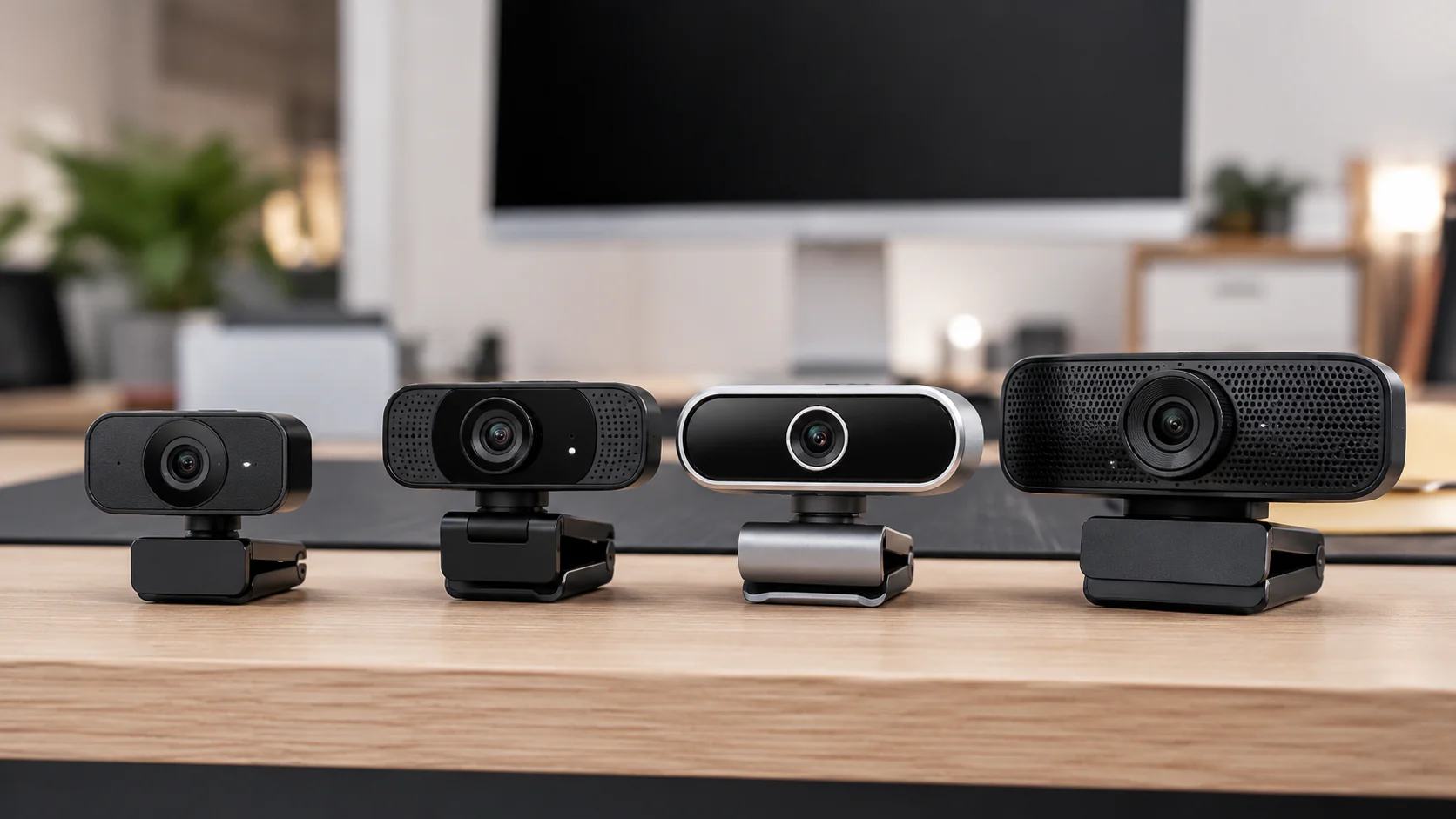
Featured Highlights
-
Insta360 Link 2C Pro (Premium Pick): Topped our list thanks to its magnetic gimbal mount and large 1/1.3″ sensor. It handled backlit and harsh light with ease and delivered DSLR-like background blur (bokeh) in good light. Its dual beamforming mic array picked up deep, natural vocals. (Con: Slightly cool color tone out-of-box, but easily adjusted.)
-
Logitech Brio 500 (Best Overall): This 1080p webcam won praise for its RightLight 4 auto-light correction, which made a dim home office look bright on camera. It also offers Show Mode and RightSight auto-framing features through Logitech’s software. It’s built from recycled plastic, sports a privacy lens cover, and has a swappable base. Wired notes it has a wider 90° view and good out-of-box quality. (Downside: At $130, some feel the integrated mount/cable and low-light performance lag behind newer cams.)
-
Anker PowerConf C200 (Best Budget): For ~$60 you get a surprisingly capable 2K/1440p camera (defaults to 2K) with fast autofocus. Its f/2.0 lens keeps you brighter in low light, and the dual stereo mics do a solid job capturing clear voice. Setup is plug-and-play, and free software lets you adjust brightness and FOV (95° down to 78°). The trade-offs are mostly ergonomic – the short USB cable and chunky hinge make it a bit fiddly to position – but as one editor put it, “for the price, the C200 is hard to beat.”
-
Dell Pro 5 (Budget 2K): This $120 webcam supports Windows Hello facial login and shoots up to 1440p@30fps. Reviewers found its color and exposure reasonable for the price, especially if you tweak settings. Its mount is magnetic and solid. One con: the non-removable USB-A cable (Wired editor’s gripe). In bright light it performs well – Tom’s found it lit even dark scenes impressively – and the higher res makes background cropping smoother.
-
Razer Kiyo Pro Ultra (Streaming/Enthusiast): A behemoth 4K camera (1/1.2″ sensor) with an f/1.7 lens. In testing it delivered the best image quality of all cams tried, with true 4K/30 or 1080p/60 modes. It also has HDR support and background blur. It’s definitely overkill (and very large) for a simple Zoom meeting, but if you want ultra-crisp video and the ability to toggle a physical shutter for privacy, this is a top-tier pick. (Huge sensor = superb low-light; price ~ $400.)
-
Budget/Older Models: Even $50 webcams like the Logitech C920 or Microsoft Lifecam HD-3000 can work in a pinch, but they use tiny 1/3″ sensors, so expect grain. Wired’s advice: even good lighting will improve those more than cheap cams. In fact, Wired explicitly calls the decade-old C920 “not worth buying in 2026” because newer options deliver much cleaner video. If budget is tight, consider an iPhone/Android webcam app instead of investing in an outdated cam.
Compact webcams (like the teal Obsbot Meet 2 above) attach easily to a laptop lid. Even tiny cams can outperform old laptop cameras. Wired’s tester liked the Obsbot’s portability for travel – it’s the smallest, lightest cam he tested – and would pick it over a Brio 500 for on-the-go setups.
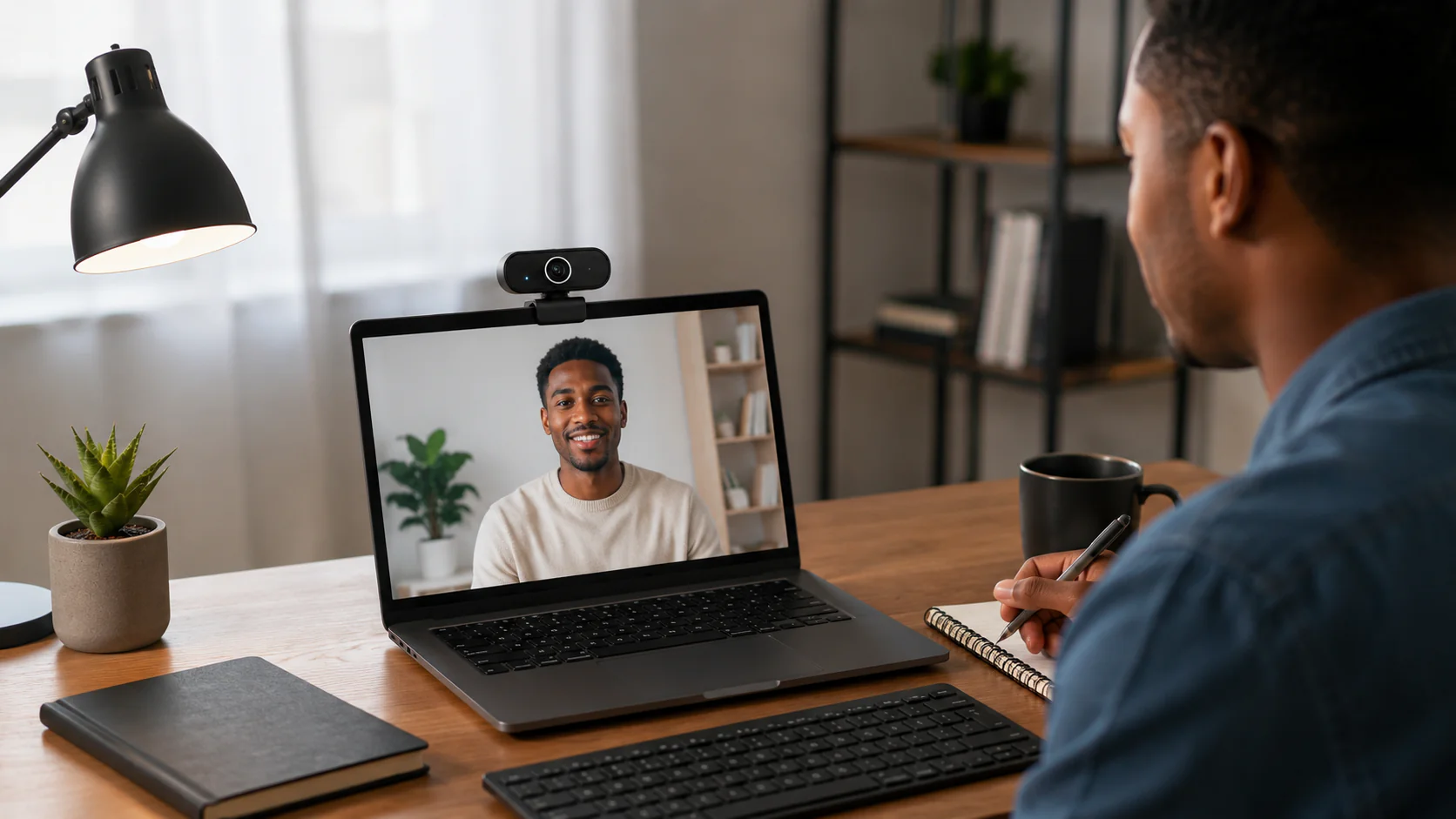
Comparison Table of Top Zoom Webcams
| Webcam | Res/FPS | Field of View | Mic(s) | Platform | Price | Why It’s Great (Pros) | Cons |
|---|---|---|---|---|---|---|---|
| Insta360 Link 2C Pro | 4K @30 / 1080p @60 | 79.5° | Dual beamforming | PC (Win/Mac) | ~$200 | Top image quality, excellent low-light, smooth AI framing | A bit pricey; colors default cool |
| Logitech Brio 500 | 1080p @30 / 720p @60 | 90° (widest) | Stereo array | PC, Mac | ~$130 | Brightening RightLight tech for dark rooms, Show Mode, privacy cover | Built-in mount/cable limits pos. |
| Anker PowerConf C200 | 2K (1440p) @30 / 1080p @60 | 95° (default) | Dual stereo | PC (Win/Mac) | ~$66 | High res and f/2.0 lens for clarity, privacy shutter | Short cable, bulky hinge |
| Dell Pro 5 (WB526) | 2K (1440p) @30 / 1080p @60 | 78° | Mono | PC (Win, Mac) | ~$120 | Windows Hello support, solid mount, good 1440p image | Fixed USB-A cable, 78° limit |
| Razer Kiyo Pro Ultra | 4K @30 / 1080p @60 | 82° (f/1.7) | Stereo array | PC (Win/Mac) | ~$400 | Huge sensor = richest detail and low-light, HDR, face-tracking | Very large/expensive |
| Elgato Facecam Neo | 1080p @60 | 77° | Yes (built-in) | PC (Win/Mac) | ~$60 | Budget-friendly 1080p60 with autofocus, compact | Fixed-focus, lower-end image |
| Logitech Brio 300 | 1080p @30 / 720p @60 | 70° (fixed) | Mono | PC, Mac | ~$60 | Basic 1080p, USB-C, privacy shutter | Narrow FOV, no HDR or zoom features |
| Obsbot Meet 2 | 1080p @30 | 90° (tracking PTZ) | (No mic built-in) | PC, Mac | ~$129 | Tiny footprint, AI auto-pan/zoom for moving presenters | No onboard mic, weaker low-light |
Image quality and mic performance came from side-by-side testing. All devices plug into USB (some include USB-C to Cables). FOV = field of view. Prices are approximate.
Making the Most of Your Webcam
Even the best camera can look bad without proper setup. Here are quick tips to improve your Zoom appearance:
-
Lighting is King: A dedicated light (like a ring light or LED panel) facing you will instantly brighten your image. As Wired notes, a simple $70 LED panel can boost call quality more than a cheap camera. Position light behind your webcam so your face is evenly lit.
-
Background and Position: Eye-level framing is ideal. Prop your laptop or monitor so the camera is at or just above eye height. Keep a tidy background or a virtual one; avoid bright light sources (windows) behind you, which cause silhouetting.
-
Test Before Meetings: Tools like Zoom’s video preview or Logitech’s software let you tweak brightness, white balance, and framing beforehand. For example, the Insta360 cam comes with easy software to cool/warm colors if needed.
-
Mic Setup: Decide whether to use the webcam’s mic or an external one. High-end cams have good mics, but external USB mics (Blue Yeti, etc.) often sound even better. If you stick with the webcam mic, ensure it’s not obstructed and you speak directly.
A privacy-conscious design: Logitech’s webcams (like the Brio 500 shown above) often include an auto-sliding lens cover and wide-angle coverage. Many high-end cams also offer auto-tilt or digital zoom so you stay centered as you move.
Pros and Cons Summary
Here’s a quick rundown of key advantages and drawbacks for the top picks:
-
Insta360 Link 2C Pro: Pros: Excellent image in any light, smooth gimbal rotation, strong dual mic. Cons: Higher price; colors can be a touch cool out-of-box (adjustable via app).
-
Logitech Brio 500: Pros: Great in low light (RightLight tech), adjustable FOV, magnetic swivel mount, privacy shutter. Cons: Integrated cable/mount are less flexible, brightness and contrast could be better.
-
Anker PowerConf C200: Pros: Outstanding sharpness for price (2K video), fast autofocus, rich sound from stereo mics, easy plug-in. Cons: Build can be finicky to reposition, short cable is restrictive.
-
Dell Pro 5 (WB526): Pros: 1440p resolution, Windows Hello login, solid build and mount, plug-and-play. Cons: Fixed cable, no big improvement if you only stream at 1080p, average microphone.
-
Budget (C920/C300 etc): Pros: Very affordable, still a step up from built-in cams. Cons: Lower resolution/small sensor (grain in low light), older tech, often fixed focus and fewer features.
-
Overall: Generally, more expensive webcams bring better sensors and features (auto-framing, HDR, very low-light capture). If you can spend $150–$200, you’ll see a big difference. If on a tight budget, choose at least a 1080p/60fps cam like the Facecam Neo or Brio 300 and pair it with good lighting.


Conclusion: Look and Sound Your Best on Zoom
Your webcam is the digital front door to your meetings – and first impressions count, even on video. In 2026, you don’t have to break the bank to look good on Zoom. If you want the absolute best, the Insta360 Link 2C Pro offers near-professional quality (it beat pricier rivals in lab tests). For most people, the new Logitech Brio 500 or the budget-friendly Anker C200 will dramatically improve your image and audio over a built-in camera.
Remember, good lighting and a tidy background are equally important. Before splurging on gear, try positioning a lamp or phone light in front of you. In many cases, even a $50 webcam with a ring light makes you way more camera-ready than just relying on your laptop alone.
Whichever webcam you choose, run a quick test call to adjust settings. Zoom has a preview button and Logitech/Anker software let you tweak brightness and cropping. Once dialed in, you’ll enjoy clearer video calls, and colleagues (or family) will thank you for looking so sharp.
In summary: For sharp, reliable Zoom calls, aim for a 1080p or 2K webcam with good low-light handling and a decent mic. Our top picks give that “premium webcam” feel (and look) without unnecessary features if you’re on a tight budget. By upgrading your camera and setup, every meeting can feel as engaging as an in-person chat.
FAQ – Your Zoom Webcam Questions
-
Is 4K really worth it for Zoom? No – most video calls max out at 1080p. A 4K webcam can downsample to 1080p for slightly better detail and gives you a larger image to crop or digitally zoom. In other words, you don’t stream in 4K, but you might get better quality video and the ability to reframe your shot.
-
What resolution and FPS should I pick? For Zoom, 1080p at 30fps is plenty. If you record or livestream outside Zoom, 1080p/60fps or 4K/30fps cams offer extra flexibility (smoother motion or crisp reframe). Budget cams like Logitech C920 (1080p/30) are okay, but newer models can also do 60fps which helps motion look less jittery.
-
Can I use my laptop’s camera? Sure – it works. But most built-in cams are only 720p and struggle in low light. A USB webcam plugs right in and almost always looks better, especially if your room isn’t perfectly lit.
-
How do I connect and use my smartphone as a webcam? On Mac, Apple’s Continuity Camera lets recent iPhones wirelessly act as webcams. On Windows or Android, apps like DroidCam or wired Pixel webcam mode can do the trick. This is a great hack if you already own a good phone.
-
What if my computer only has USB-C or USB-A? Check the cable type: many modern webcams come with USB-C plugs and adapters. (For example, the Brio 500 uses USB-C.) If needed, you can use a short USB-C to USB-A adapter or extension. Be careful: Wired noted that some cams like Dell Pro 5 ship with fixed USB-A cables, which can be less convenient if your port is elsewhere.
-
Will any webcam work with Zoom, Teams, etc.? Yes. All the webcams listed here use standard USB video profiles, so they plug and play with Zoom, Teams, Google Meet, Skype, and most OSes (Windows, macOS). Some features (auto-light or framing) may require manufacturer software on Windows/macOS.
-
How can I improve my Zoom video even more? Besides a better camera, improve lighting (the number one factor), ensure a clutter-free background, and upgrade your microphone if needed. A ring light or desk lamp angled toward your face helps tremendously. Also, position yourself a few feet from a wall or object to let the camera gently defocus the background (bokeh).